
Table of contents
What You Need
Introduction
I’m a little embarrassed it took me this long to figure this out.
When I needed an infographic, I’d open whichever AI image generator was best at the time, paste in my content, and hope for the best. The results were consistently disappointing: broken or garbled text, elements that were the wrong size, a vaguely off feeling to the whole thing. And if you wanted to change one small detail? It would either regenerate the entire image or alter parts you never asked it to touch.
AI coding tools already generate HTML and CSS precisely, following instructions, and building on templates. That same capability applies to infographics.
Instead of asking AI to draw an infographic, ask it to build one. You get a clean HTML file with accurate, editable text, structured layout, and your brand colors baked in, that can be exported to PNG using the button included in the starter template.
Step by Step
1. Setup folder and add logo
Download the starter kit for your tool and unzip it wherever it is easy to find.
For Codex, Cursor, or any non-Claude tool:
For Claude Code:
Then grab your logo file from your website and drop it into the same folder. PNG, JPG, WEBP, and SVG all work.
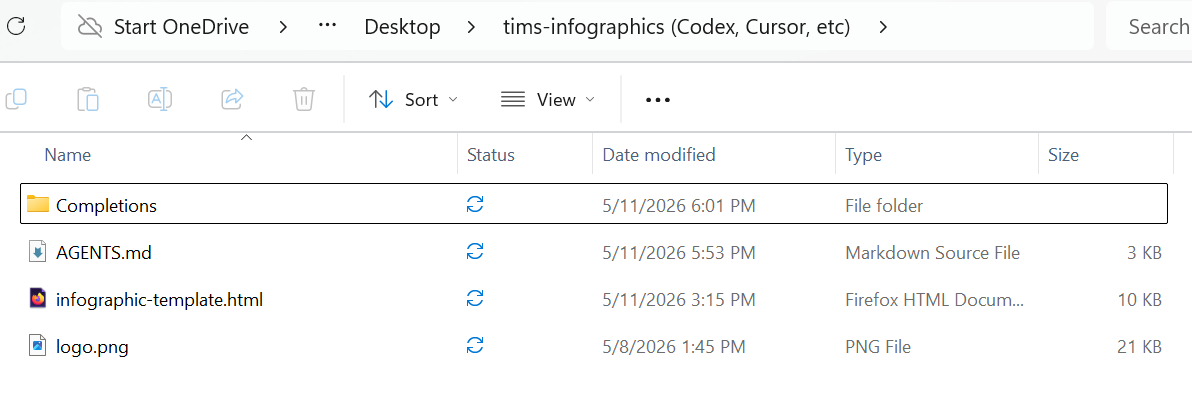
Your folder should look like this before you start:
AGENTS.md(orCLAUDE.mdif you’re using Claude Code)infographic-template.htmlCompletions/logo.png(or.svg,.webp, etc.)
2. Open your AI coding tool inside the folder
Open the starter folder as a local project or workspace in your coding tool. The AI needs to be able to read AGENTS.md or CLAUDE.md and write files to this directory.
3. Prompt it with your blog post URL
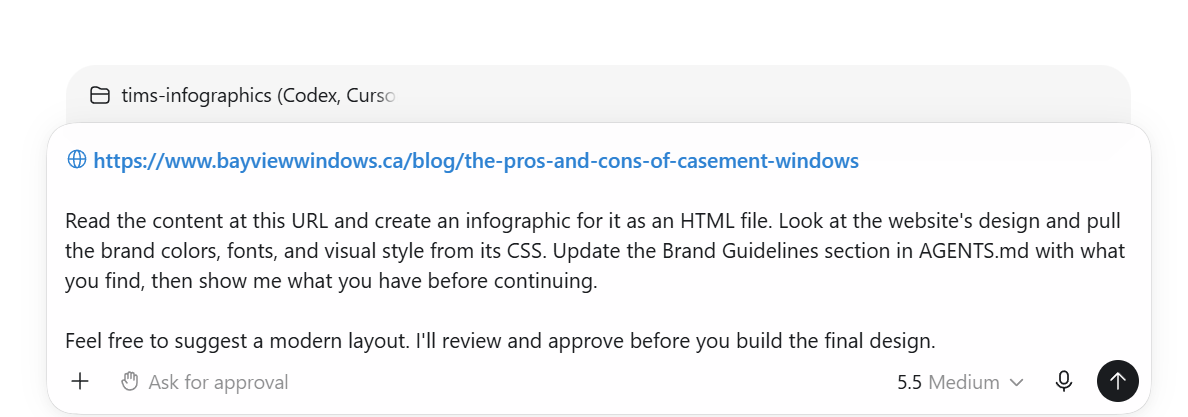
https://yourblog.com/your-post-url Read the content at this URL and create an infographic for it as an HTML file. Look at the website's design and pull the brand colors, fonts, and visual style from its CSS. Update the Brand Guidelines section in AGENTS.md with what you find, then show me what you have before continuing. Feel free to suggest a modern layout. I'll review and approve before you build the final design.
You can also add notes here about specific visuals you want, a style direction, or anything you want emphasized.
4. Allow it to look at the page’s CSS
Your coding tool may ask for permission to access the website and its public stylesheets. Approve access to your own site so it can inspect the colors, fonts, spacing, and other design details. If it cannot retrieve the CSS, download the relevant stylesheet or paste your brand details into the instructions file manually.
5. Review the brand guidelines
The AI will visit your site, extract colors, fonts, and style cues, and write them into the Brand Guidelines section of AGENTS.md (or CLAUDE.md if you’re using Claude Code). Read what it pulled. If something is off (wrong color, wrong font weight, wrong tone), tell it now. You can also edit the file directly in a text editor at any time.
When the branding looks right, tell it to move on to the design.
6. Review the infographic
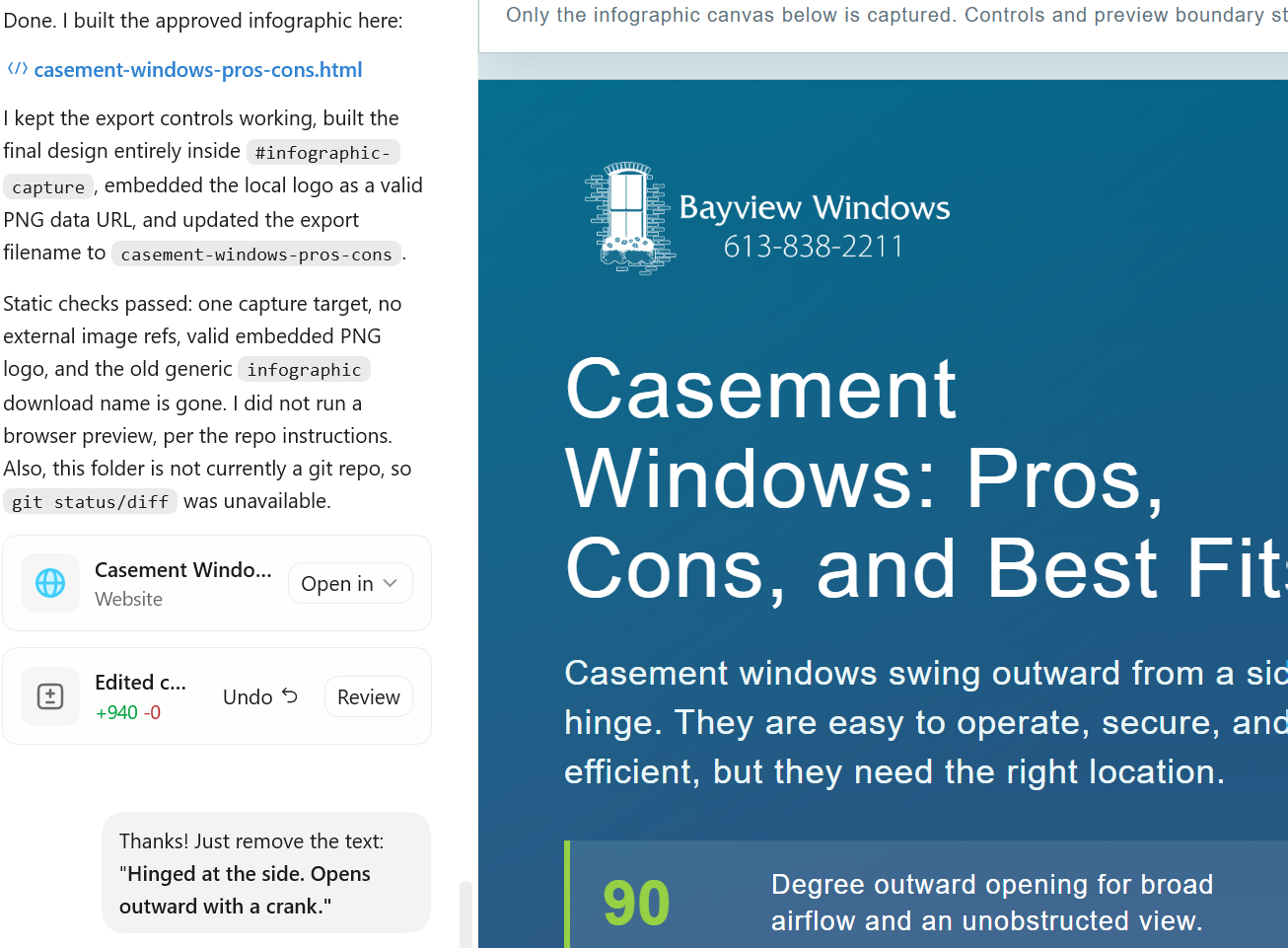
When it finishes, open the generated HTML file using your tool’s preview, or open the file directly in your browser. Look it over carefully. If anything is wrong (a stat that’s off, a section that’s unclear, a layout element you don’t like), tell the AI exactly what to fix.
7. Open it in your browser and export
If you’re using Codex, click Open in external browser. Codex can preview the infographic, but it cannot download the PNG from inside the preview.

The starter template includes the download controls. In your browser, select PNG, click Download image, and save the finished infographic.
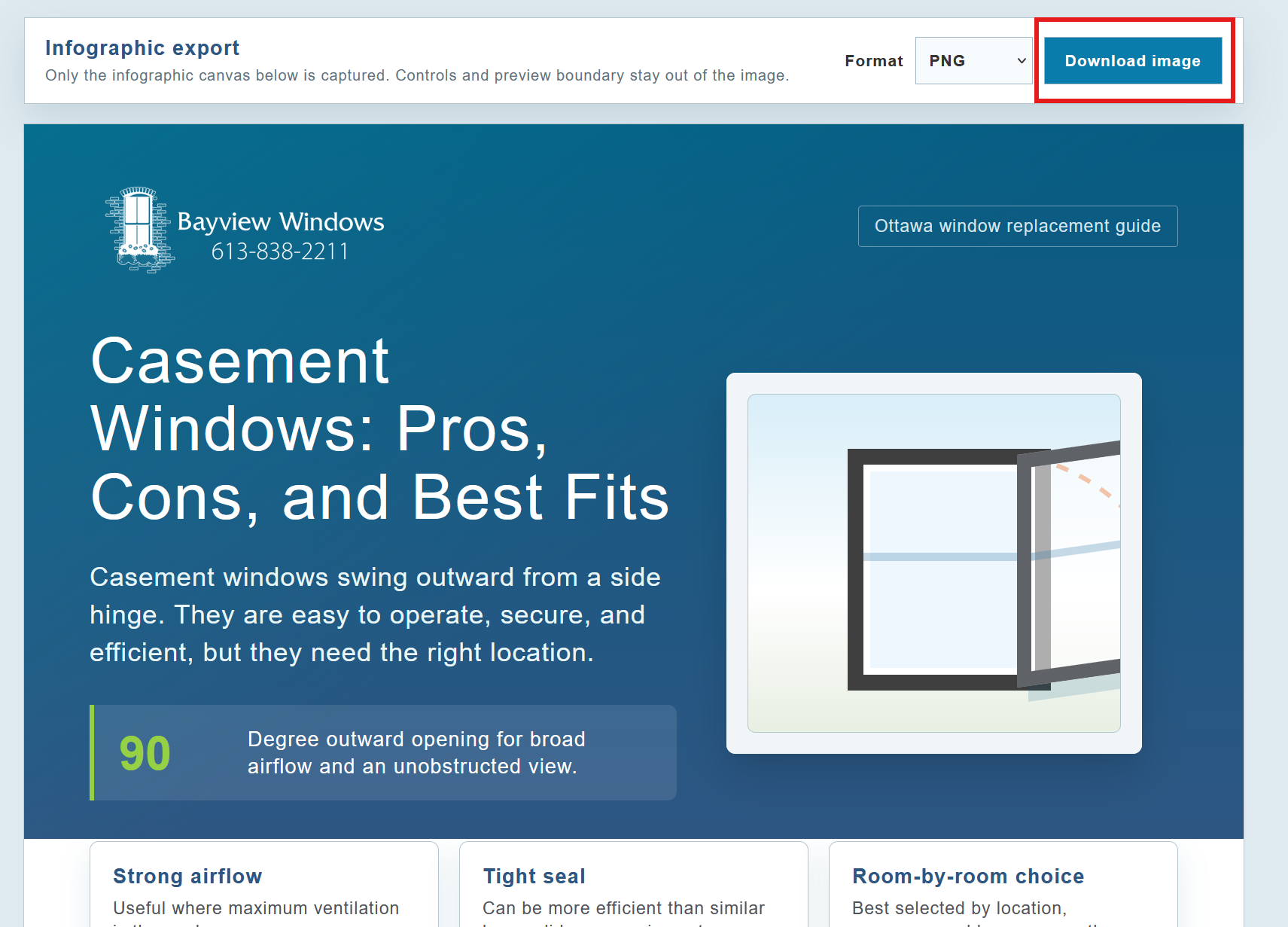
The downloaded file is ready to add to your blog post, LinkedIn, or anywhere else.
Moving Forward
Once you have an infographic design you’re happy with, lock it in as your brand’s template by prompting again in the same chat:
Update infographic-template.html to remember our style choices: colors, fonts, layout patterns, spacing. Keep the template flexible so we can reuse it for different infographics for this brand. Preserve the export functionality, canvas dimensions, logo placement, and core HTML structure unless I explicitly ask you to change them.
From now on, every new infographic you make in this folder starts from that template. Open a new chat in Codex, point it at a URL, and you have a brand-consistent infographic in a few minutes.
You can also refine AGENTS.md (or CLAUDE.md) directly over time: adjust the writing tone, add do-not-use colors, note which layout worked best. It acts as the persistent memory for this brand’s visual style.
The first infographic takes about 20 minutes. Each one after that takes five.
Pro tip:If your content is data-heavy, drop a CSV into the folder and reference it in your prompt. The AI can pull numbers directly from the file to build charts and stats into the infographic without manual copy-pasting.